Construction Inspection App — guides for inspectors and companies
Start here
Welcome to Blackstone
Blackstone lets you run construction and site inspections on your phone — take GPS & time-stamped photos, fill checklists, and generate professional PDF/Word reports you can share instantly. Works offline on site.
1. Getting started
1 Install Blackstone (from Google Play, or open the web app link your company sent).
2 Open the app. On first launch you set a 4-digit PIN to protect your data.
3 Choose your language — Blackstone speaks 9 languages (EN, DE, TR, AR, ES, IT, HI, JA, KO).
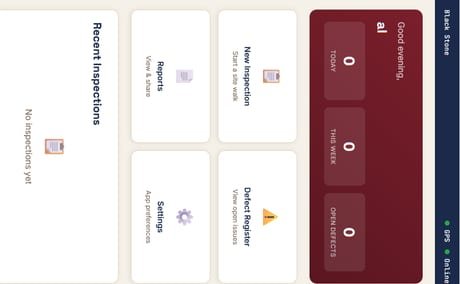
The main menu — your inspections start here.
2. Sign in, free trial, or join your team
You have three ways in:
ASign In — with the email & password you registered online.
BStart Free Trial — new here? Enter name, email and company to try it.
CJoin Team — your company admin sent an invite code/link.
Same account everywhere: sign up online and log into the app with the same email and password.
3. Choose a site (project)
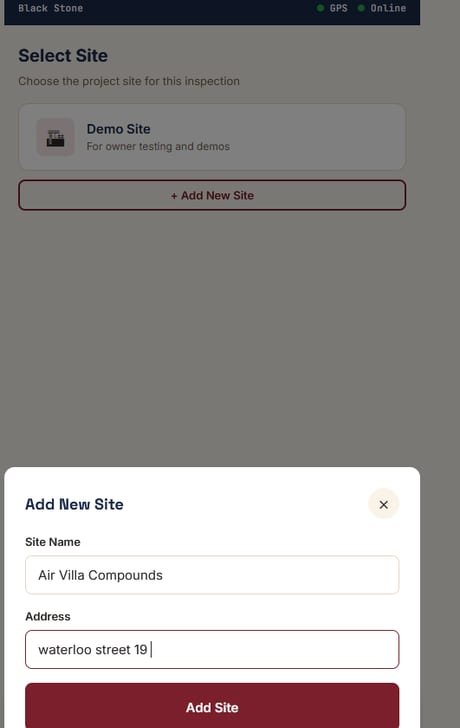
1 Pick the site you are inspecting, or tap + Add New Site.
2 Each site holds its own inspections and reports.
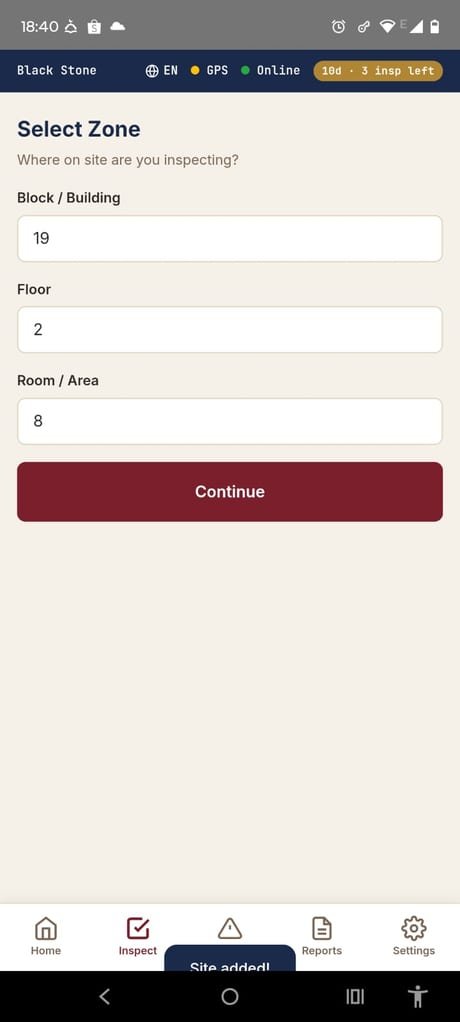
Set the zone: block, floor, room/area.
4. Create an inspection
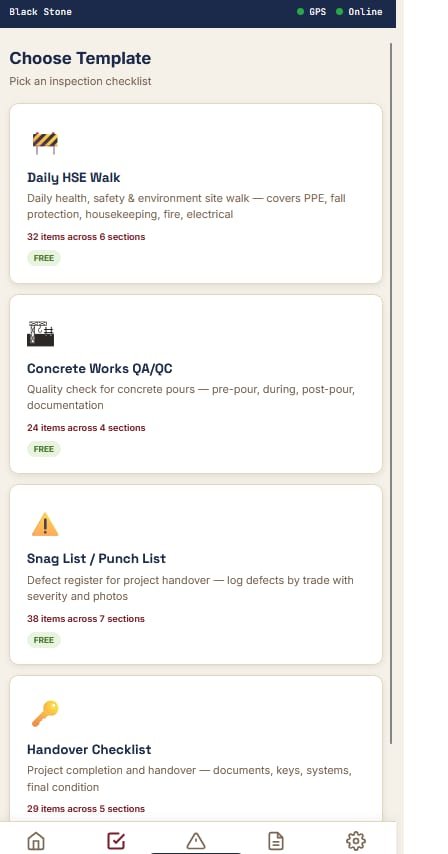
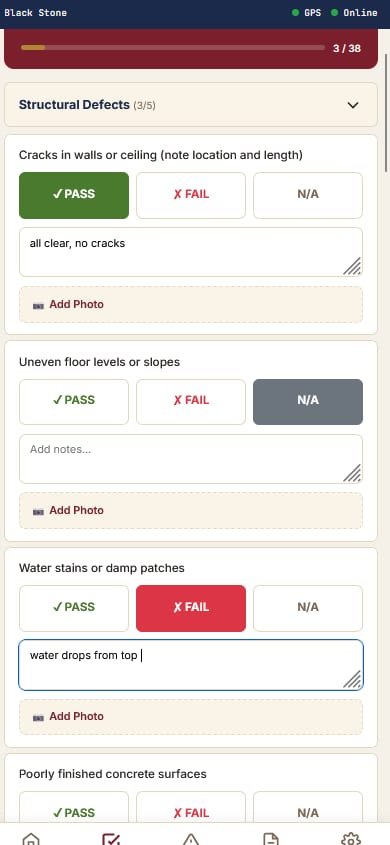
1 Start a new inspection and pick a template (e.g. Daily HSE Walk, PPE, Electrical).
2 Work through each checklist item — mark Pass / Fail / N/A and add notes.
3 Add photos to any item as evidence (see next section).
Set up a new inspection.Pick a ready-made template.Work through the checklist points.
5. Take photos (evidence)
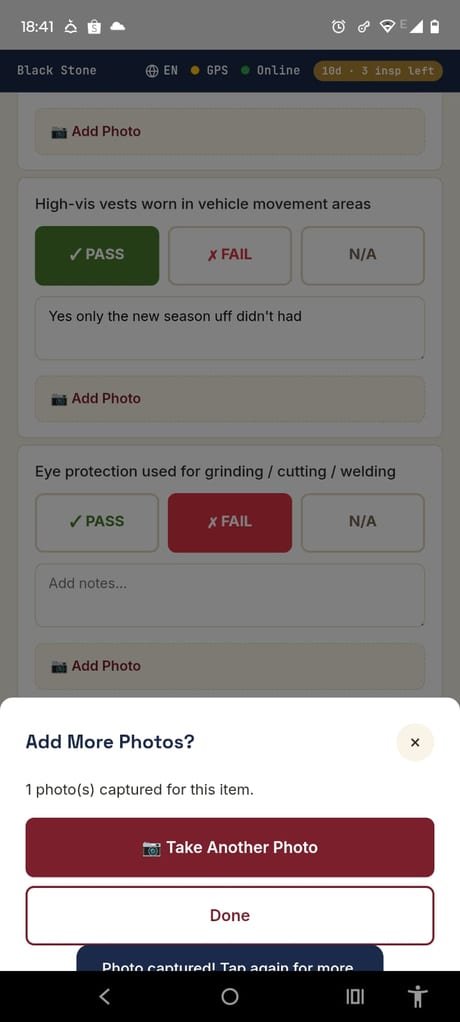
1 Tap the camera on a checklist item — the phone camera opens.
2 Take the photo. Blackstone stamps it with GPS location and date/time as proof.
3 Choose next photo or done. Photos are saved to your phone gallery (album “Blackstone”) so your company can reuse them or upload to the cloud.
First time you take a photo, Android asks to allow the camera — tap Allow.
Take another photo, or tap Done.Every photo is GPS + time stamped.
6. Generate & share the report
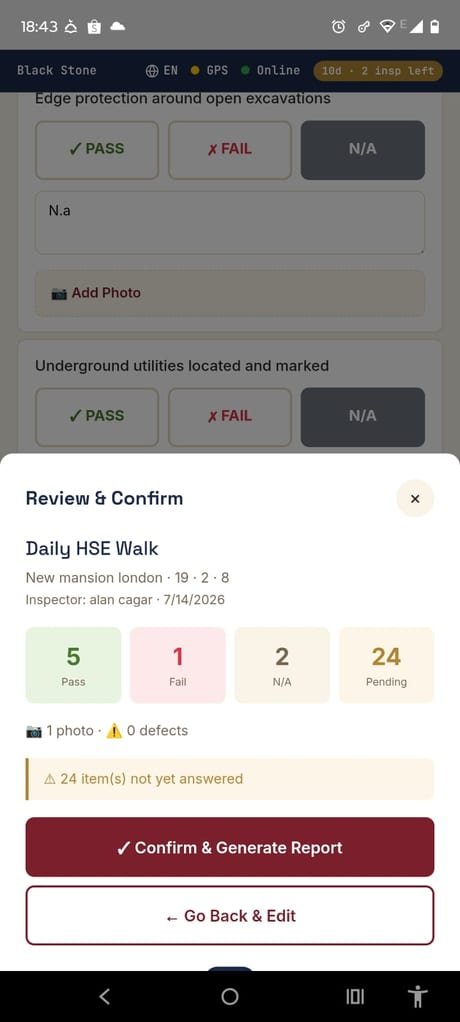
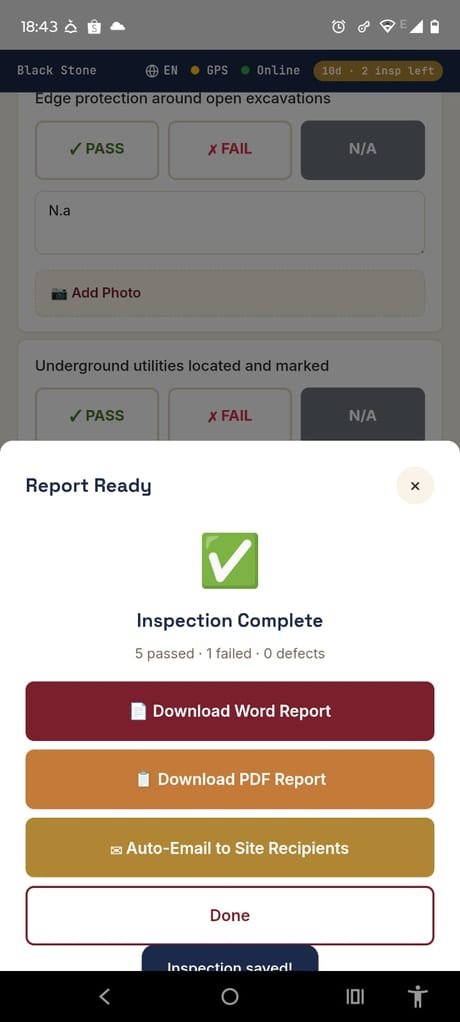
1 When the inspection is done, generate a PDF or Word report.
2 The report is saved to your Downloads folder and the share menu opens.
3 Pick WhatsApp, Email, Drive, or any app to send it.
Email option not working? The share menu only lists apps installed on the phone. Email works when an email app (Gmail/Outlook) is installed and signed in. If none is set up, nothing happens — install/sign in to an email app once. This is a phone setting, not an app fault.
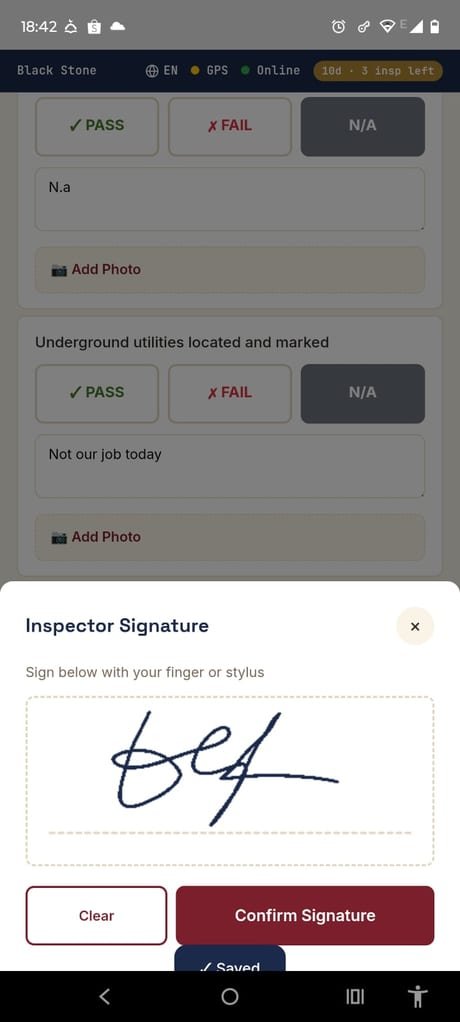
Review, then Confirm & Generate Report.Download Word/PDF, or email to site recipients.Sign off with finger or stylus.
7. Trial limits & upgrading
The free trial allows 3 inspections, 1 project and 20 photos. When you reach a limit, tap Upgrade to continue — via the customer portal / checkout. Paid accounts have no limits.
8. Working offline
Blackstone works offline on site — your inspections and photos are stored on the phone. When you are back online, sign-in, trial and account checks sync automatically. Report generation and sharing need the app open; capturing data does not need a connection.
9. FAQ & troubleshooting
The camera only shows the gallery / won’t open.
Update to the latest app version and, on first photo, tap Allow when Android asks for camera permission.
Where are my photos saved?
In the phone gallery, album “Blackstone” (Pictures/Blackstone). Reports are in Downloads.
“Send email” does nothing.
Install and sign in to an email app (Gmail/Outlook). The share menu only shows apps that exist on the phone.
I signed up online but can’t log into the app.
Use the same email and password you registered with. If it still fails, ask your company admin for an invite link.
Can I use it on more than one phone?
Yes — sign in with the same account. Team members join via an invite from the admin.